Mycomarkup
Mycomarkup은 Mycorrhiza Wiki에서 자체적으로 사용하는 마크업 언어입니다.
Markdown, Creole 등의 마크업은 지원하지 않으며, Mycomarkup만 사용 가능합니다.
Mycomarkup 문서(주로 hypha's text part)은 blocks로 구성되며, 목적에 따라 다양한 블록이 존재합니다.
목차
- Paragraph
- Inline link
- Rocket link
- Heading
- Codeblock
- Thematic break
- Image gallery
- List
- Quote
- Table
- Transclusion
Paragraph
Paragraphs 은 가장 기본적이고 자주 사용되는 블록입니다.
Paragraph을 만들려면 단순히 텍스트를 작성하면 됩니다. Paragraph은 빈 줄로 구분합니다.
-
Paragraph 1 Paragraph 2 Second line of paragraph 2 -
Paragraph 1
Paragraph 2
Second line of paragraph 2
스타일링도 적용할 수 있습니다.
예시
-
//기울임//
**굵게**
`고정폭`
++강조++
^^위첨자^^
__밑줄__
,,아래첨자,,
~~취소선~~
조합도 가능합니다: ++**//복합//**++
-
You can use italic, bold,
monospace, highlighted, lifted, underscored, lowered orstriked-throughtext. You can also combine them!
스타일링을 방지하려면 역슬래시 \를 사용합니다.
-
This is not \//italic\// -
This is not //italic//
You do not have to close the stylings, they will span until the end of line.
-
This is //italic This is not -
This is italic
This is not
You can include inline links.
-
Just a paragraph with a couple of [[https://example.org | links]] leading [[nowhere]].
Link
Inline link
Inline links are part of a paragraph.
External links can be placed verbatim if they have protocol specified. These links are called autolinks. It may not work as expected sometimes. Supported protocols for autolinks are https, http, gemini, gopher, ftp.
-
https://example.org
Wrap links to hyphae and external links with [[ and ]].
-
Links to a [[hypha]] and [[https://example.org]]. -
Links to a hypha and https://example.org.
If you want to change the displayed text of the link, write it after |.
-
Links to [[hypha | a Hypha]] and [[https://example.org | some website]]. -
Links to a Hypha and some website.
Since hypha names are case-insensitive, these links are basically the same: [[hypha]], [[Hypha]], [[HYPHA]].
Rocket link
Rocket links are special links. They take up a whole line. They are not consistent with usual inline links. They were taken from gemtext.
The display text is written after the first space, not |. If you want to link a hypha with spaces in it, replace the spaces with _.
-
=> hypha
=> hypha with spaces
=> https://example.org
=> https://example.org | Display text
Relative link addressing
You don't have to write the full hypha name in every link, you can use relative links.
Consider you are editing a hypha called fruit/apple.
To link fruit/pear (a sibling hypha) you can write [[../pear]]. To link fruit/apple/red (a subhypha) you can write [[./red]]. You can do the same in rocket links, image galleries, transclusion and everywhere else you write hypha names.
There is also a way to link the wiki's non-hypha pages. For example, to link the Recent changes page, you can write [[/recent-changes]]. You should use that rather than write the site's full URL because it may change in the future.
Link colors
Links come in several colors. Blue links are links to existing resources, while red links are links to non-existent resources. All external links are considered existing, therefore they are blue. Internal hypha links are always checked for existence.
Note that visited blue links are colored purple but are still called blue links. Moreover, blue links are yellow in the default dark theme.
Heading
There are four levels of headings. They consist of some equal signs followed by a space and the heading itself. You can format the heading like a paragraph. Feel free to start with = level 1, because it actually translates into HTML's <h2>, there will be no collisions with the hypha's title.
= level 1
== level 2
=== level 3
==== level 4
There is an invisible link that shows the § sign near every heading right after the heading text. You can reveal it with a mouse. If you click it, the URL in the browser will change to the URL leading to that very heading. Try that on headings in this article.
Codeblock
Use codeblocks to show code or any other preformatted text. Codeblocks start with triple backticks on column 1 and end similarly. You can write any text after the backticks, it is ignored. Put the preformatted text between them.
Like that, but without leading spaces:
 ```
 this is preformatted
    see
 ```
this is preformatted
seeThematic break
Write four hyphens to insert a thematic break, represented by a horizontal line. Use it to break a theme.
-
---- -
Image gallery
Use image galleries to embed images to the page. Images can be either hyphae or external files. In the example below you can replace the URL with a hypha's name. If that hypha is an image, the image will be shown.
You can write a description for the image and specify its size.
-
img { https://bouncepaw.com/mushroom.jpg https://bouncepaw.com/mushroom.jpg { Description //here// } https://bouncepaw.com/mushroom.jpg | 100 { Size } https://bouncepaw.com/mushroom.jpg | 50*50 } -
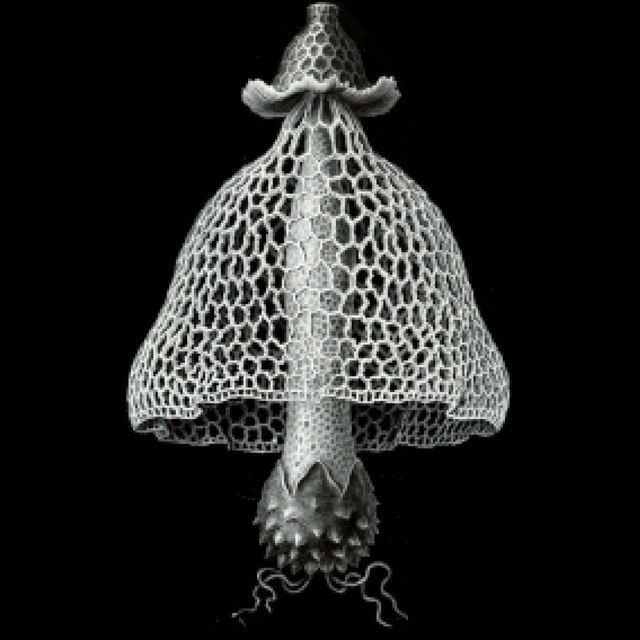
Description here
Size
Square
If you were embedding a hypha called an image hypha, it would look like this:
-
img {
an image hypha
}
If you put just one image, it will be displayed with no decorations:
-
img { https://mycorrhiza.wiki/static/favicon.ico } -
Gallery layout
Set gallery layout to specify how your gallery is placed.
There are three layouts: normal (the default), grid and side.
Specify the layout after img and before {. If you do not write any of them, normal will be used.
img grid {
   https://bouncepaw.com/mushroom.jpg
   https://bouncepaw.com/mushroom.jpg
}

img side {
   https://bouncepaw.com/mushroom.jpg | 200
   https://bouncepaw.com/mushroom.jpg | 200
}

This text is wrapped.
This text is wrapped.
List
Lists are used for sequential or tree data. They are quite popular.
Mark each list entry with an asterisk and a space:
-
* one * two * three -
-
one
-
two
-
three
-
If you place dots after the asterisks, the list becomes numbered:
-
*. one *. two *. three -
-
one
-
two
-
three
-
If you place x or v, you make the entries unfinished and finished TODO entries respectively.
-
*v Done *x Not done **v Super done ** Cool -
-
Done
-
Not done
-
Super done
-
Cool
-
-
All of Mycomarkup is supported in list entries. If you want to have multi-line entries, wrap the contents in curly braces.
Quote
Prepend lines with > to quote them.
Table
Tables are delimited by table {...}. Both delimeters have to be on their own lines. You can write table's caption on the first line.
Empty table:
table {
}
Empty table:
table { Empty table but with proper caption
}Heading cells start with !, normal cells start with |. Table rows are separated with line breaks:
table {
! Monday  ! Friday
| sad day | happy day
}|
Monday |
Friday |
|---|---|
|
sad day |
happy day |
Table cells support all paragraph styling:
table {
! Monday ! Friday
| sad day | //happy day//
}|
Monday |
Friday |
|---|---|
|
sad day |
happy day |
If you a cell to span several columns, write cell starting character that many times without spaces:
table {
! Monday ! Friday
|| ok day
}|
Monday |
Friday |
|---|---|
|
ok day |
|
Currently cells spanning several rows are not supported.
If want to write a multiline cell, wrap its contents in {} and continue the table:
table {
| a | b
| { there are
//two// paragraphs in this cell! } | d
}|
a |
b |
|
there are |
d |
You can omit the initial pipe characters. They will be inserted automatically:
table {
a | b
c | d
}|
a |
b |
|
c |
d |
Transclusion
Transclusion is the mechanism of including contents of other hyphae into one hypha.
To include a hypha named yoghurt, write a line like that:
<= yoghurtIn the 1.2 Release, the transclusion semantics and syntax were changed. If you were using transclusion before that release, please update your hyphae. For time being, the engine will report transclusion using the old syntax with colon.
Transclusion lines start with a reverse-rocket symbol (<=) followed by zero or more spaces. The text on the line before a line break or a pipe character (|) is called target or target hypha. If there is a pipe, the text after it is called selector. If there is no pipe, the selector is empty. Both target and selector are stripped of left-side and right-side whitespace before further processing.
<= target hypha
<= target hypha |
<= target hypha | selector
Selector
The selector specifies what part of the target to transclude. The parser checks for these words:
-
fullTransclude the whole document. -
textTransclude all text. -
attachmentTransclude media only. -
descriptionTransclude first paragraph only. -
overviewShort for bothattachmentanddescription.
If only one of them is found, the corresponding part is transcluded. If several are found, the bigger transclusion is done. If none are found, overview is implicitly considered.
Additionally, if the word blend is present, the transclusion is rendered without the gray box and the link to the target by default.
This is an actual transclusion of a hypha below. It will fail if your wiki does not have this hypha.
Cannot transclude hypha u because it does not exist
Recursive transclusion is also supported but it is limited to three iterations.